WhatsApp Plus Customization Features: Themes, Fonts and More
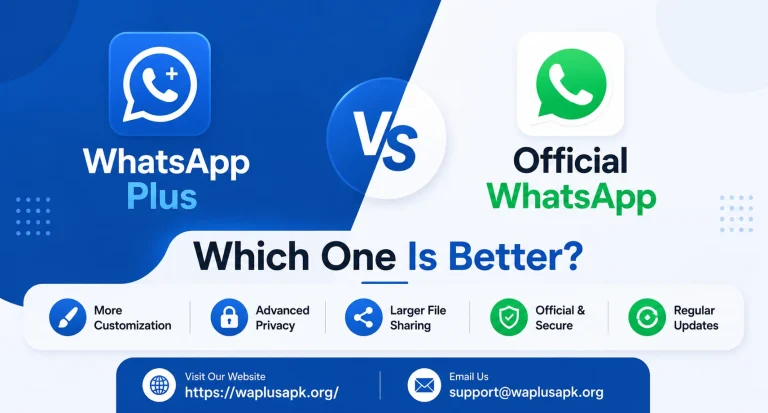
For a huge number of users, the very first thing that draws them toward WhatsApp Plus isn’t privacy at all — it’s the sheer visual freedom it offers. Official WhatsApp has remained fairly conservative in how much it lets users change the app’s actual appearance, sticking mostly to a basic light and dark mode along with a handful of wallpaper choices. WhatsApp Plus takes a completely different approach, treating customization as one of its core selling points rather than an afterthought. This article walks through everything the app offers on the visual and personalization side, along with practical guidance on getting the most out of these features.
Why Customization Became Such a Major Focus
To understand why WhatsApp Plus invests so heavily in customization, it helps to think about how people actually use their phones. For a lot of users, a messaging app isn’t just a functional tool — it’s something they look at dozens or even hundreds of times a day. Small visual details, repeated that often, genuinely affect how someone feels about using an app. Official WhatsApp, serving billions of users across every type of device and preference, has strong incentives to keep its interface simple, consistent, and universally usable. That approach makes sense for a massive, general audience, but it leaves a real gap for users who want their messaging app to feel personal, distinctive, or aligned with their individual taste.
WhatsApp Plus developers, working independently and catering to a smaller, more customization-hungry community, filled that gap directly.
Exploring the Theme System
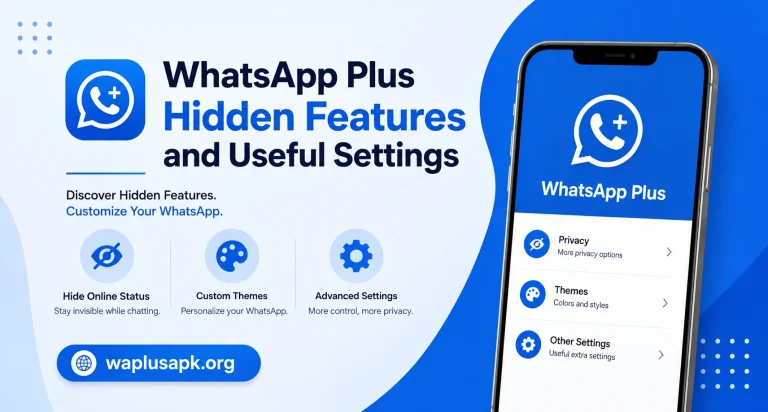
The theme system is easily the most prominent customization feature in WhatsApp Plus, and it’s often the first thing new users explore after installation.
Access to thousands of community-made themes.
Rather than a handful of built-in options, WhatsApp Plus typically connects to a large library of themes created by independent designers and contributors, covering everything from minimalist designs to vibrant, colorful interfaces.
Complete color scheme changes.
Themes can alter far more than just the background — chat bubble colors, header bars, icon styling, and navigation elements can all shift dramatically depending on which theme you select.
Seasonal and specialty themes.
Many theme libraries include options tied to holidays, popular aesthetics, or specific visual styles, giving users a way to refresh their app’s look periodically rather than settling on one permanent appearance.
Easy switching between themes.
Most versions allow you to preview and switch themes fairly quickly through a dedicated theme menu, without needing to reinstall or reconfigure the app.
How to Apply a New Theme
1. Open the theme menu. This is typically found within the app’s settings, often under a dedicated customization or appearance section.
2. Browse available options. Depending on your version, themes might be built directly into the app or require downloading a separate theme file that you then import.
3. Preview before committing. Many versions let you see a preview of how the theme will look before fully applying it, which helps avoid the hassle of repeatedly switching back and forth.
4. Apply and restart if needed. Some theme changes take effect immediately, while others might require a quick app restart to fully load all visual elements correctly.
Font Customization Options
Beyond overall themes, WhatsApp Plus also typically allows you to change the actual font style used throughout the app’s text — something official WhatsApp doesn’t offer at all.
Multiple font style choices.
Depending on the version, you might have access to anywhere from a handful to dozens of different font options, ranging from clean and modern styles to more decorative or stylized fonts.
Adjustable font sizing.
Some versions also let you fine-tune text size independently from your phone’s general system settings, giving you more precise control over readability.
Consistent application across the app.
Once selected, your chosen font typically applies consistently across chat screens, menus, and other text throughout the interface, creating a cohesive personalized look rather than just changing text in one isolated area.
Wallpaper and Background Customization
While official WhatsApp does allow chat wallpaper changes, WhatsApp Plus generally expands this considerably.
Per-conversation wallpapers
. Rather than applying one wallpaper universally, many versions let you assign different backgrounds to individual conversations, making it easier to visually distinguish between different chats at a glance.
Custom image uploads.
Beyond built-in wallpaper options, users can typically upload their own personal images as chat backgrounds, adding a genuinely personal touch to the messaging experience.
Opacity and blur adjustments.
Some versions include additional controls for adjusting how prominent or subtle a wallpaper appears behind chat bubbles, balancing aesthetics with text readability.
Icon and Interface Element Customization
Going even further than themes and fonts, some versions of WhatsApp Plus allow customization of specific interface elements individually.
Custom notification icons. Rather than the standard icon, some versions let you change how the app’s notification icon appears in your phone’s status bar.
Chat bubble style adjustments. Beyond just color, some customization options extend to the actual shape and style of message bubbles themselves.
Custom app icon options. A few versions even allow changing the app’s home screen icon entirely, letting users match it visually with their broader phone theme or launcher setup.
Combining Multiple Customization Features Together
The real appeal of WhatsApp Plus customization comes from how these features work together rather than in isolation. A user might pair a minimalist theme with a clean, modern font and a subtle, low-opacity wallpaper to create a calm, distraction-free messaging environment. Another user might combine a vibrant, colorful theme with playful fonts and personal photo wallpapers to create something lively and expressive. This flexibility to mix and match is precisely what makes the customization system feel genuinely personal rather than just offering a few pre-set combinations.
Practical Tips for Choosing Customizations Wisely
Prioritize readability over pure aesthetics. It’s easy to get drawn toward visually striking themes or decorative fonts, but if text becomes harder to read quickly, the customization ultimately works against you rather than enhancing your experience.
Test wallpaper opacity carefully. Busy or overly detailed wallpapers behind text can make conversations genuinely harder to follow, so testing different opacity levels before committing helps strike the right balance.
Update themes cautiously. Since theme files sometimes come from third-party community sources, it’s worth applying the same basic caution here as with the app itself — sticking to well-reviewed, actively maintained theme sources rather than obscure or rarely-updated options.
Revisit your choices periodically. Since switching themes and fonts is generally quick and reversible, there’s no need to commit permanently to one look — many users enjoy refreshing their app’s appearance every so often just to keep things feeling new.
Why This Matters Beyond Just Aesthetics
It’s worth pointing out that customization isn’t purely superficial. For many users, a genuinely personalized interface makes the app more enjoyable to use daily, which can translate into a generally more positive relationship with something they interact with constantly. There’s also a practical angle — per-conversation wallpapers, for instance, help some users navigate busy chat lists more efficiently by creating visual cues that make specific conversations instantly recognizable.
A Note on Performance With Heavy Customization
While most customization features are lightweight, applying multiple custom images, especially high-resolution wallpapers across many individual conversations, can occasionally use more storage space and, in some cases, slightly affect how quickly the app loads certain chat screens. This isn’t usually a significant issue for most users, but it’s worth being aware of if you’re the type to customize extensively across dozens of conversations at once.
Frequently Asked Questions
Final Thoughts
Customization stands as one of the clearest, most immediately visible reasons people gravitate toward WhatsApp Plus over the official app. Where official WhatsApp prioritizes consistency and simplicity for an enormous, diverse user base, WhatsApp Plus leans fully into personal expression, offering themes, fonts, wallpapers, and interface tweaks that let users shape the app around their own individual taste rather than settling for a one-size-fits-all appearance. Whether your goal is a calming, minimalist setup or a bold, expressive interface, the sheer range of options available makes it genuinely easy to create a messaging experience that feels distinctly your own.