How to Update WhatsApp Plus to the Latest Version
Keeping any app current matters, but it matters even more with something like WhatsApp Plus, where updates aren’t handled automatically the way they are with apps distributed through the Google Play Store. Falling behind on updates can mean missing out on new features, running into compatibility problems, or even losing access to the app entirely if an outdated version stops working with WhatsApp’s servers. This guide walks through exactly how updating works, why it matters so much, and how to do it safely and consistently.
Why Updating Works Differently for WhatsApp Plus
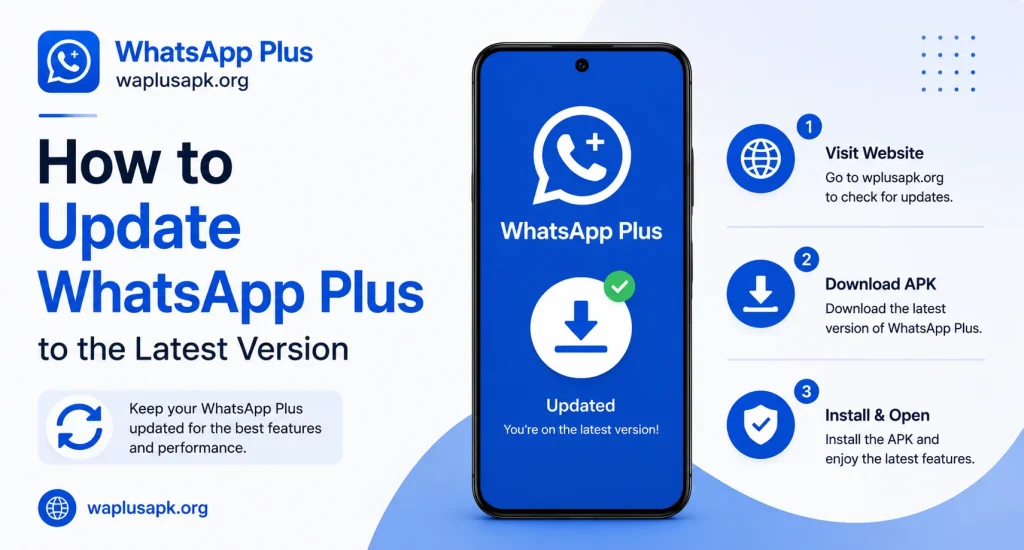
Official WhatsApp updates happen quietly in the background through the Play Store, often without users even noticing. WhatsApp Plus, since it isn’t distributed through official app stores, doesn’t have this automatic convenience built in. Instead, updating requires manually checking for a new version, downloading it, and installing it yourself — a process that puts the responsibility for staying current entirely in your own hands.
This isn’t necessarily a bad thing, but it does mean you need to build a habit around checking for updates periodically, rather than assuming the app will simply take care of itself the way official apps do.
Why Staying Updated Matters So Much
Compatibility with WhatsApp’s servers.
WhatsApp’s parent company periodically updates its backend systems, sometimes in ways that specifically detect and block older, unauthorized client versions. Staying on a recent version of WhatsApp Plus reduces the risk of suddenly losing functionality when these changes roll out.
Access to newly added features.
Independent developers maintaining WhatsApp Plus regularly add new customization options, privacy controls, or interface improvements, and you’ll only benefit from these if you’re actually running a current version.
Bug fixes and stability improvements.
Like any software, earlier versions often contain small bugs or glitches that get addressed in later updates, so staying current generally means a smoother, more reliable experience overall.
Reduced security exposure.
While updating doesn’t guarantee complete safety, developers who actively maintain their app do sometimes patch known issues over time, and running a severely outdated version generally means missing out on any such improvements.
How to Check Your Current Version
Before updating, it helps to know exactly what version you’re currently running. This information is typically found within the app’s settings, usually under an “About” or general settings section, where the current version number is displayed clearly.
Step-by-Step: Updating WhatsApp Plus
1. Back up your chats first.
Just as with the initial installation, backing up your current chat history before updating protects you in case anything goes wrong during the update process.
2. Locate the updated installation file.
Since there’s no centralized store handling this automatically, you’ll need to obtain the newer version’s installation file directly, making sure it matches the specific variant of WhatsApp Plus you’re currently using.
3. Verify the file before installing.
Running a quick security scan on the new installation file, just as you would with the original installation, remains an important precaution even when updating a version you already trust.
4. Install over your existing app or replace it.
Depending on the specific version, updates sometimes install directly over your existing app, preserving your chats automatically, while other updates may require uninstalling the old version first. Check any accompanying instructions carefully before proceeding, since doing this incorrectly can occasionally result in lost data.
5. Verify your chats and settings after updating.
Once the update completes, open the app and confirm that your chat history, custom themes, and privacy settings have carried over correctly.
Understanding Version Numbering
Independent developers maintaining WhatsApp Plus typically follow some form of version numbering to help users track updates, though the exact format can vary between different development teams. Generally, larger number changes indicate more significant updates with new features, while smaller incremental changes usually represent minor bug fixes or small adjustments.
What Happens If You Don’t Update
Skipping updates for a short period usually doesn’t cause immediate problems, but the risk increases the longer you go without checking. Over time, outdated versions become increasingly likely to encounter compatibility issues, particularly after WhatsApp rolls out broader system changes on their end. In more extreme cases, severely outdated versions can stop connecting to WhatsApp’s servers entirely, effectively locking you out until you update to a newer, compatible version.
How Often Should You Check for Updates
There’s no strict universal rule here, but a reasonable habit many experienced users follow is checking every few weeks, or whenever they notice something behaving unexpectedly within the app. Following any community forums or groups associated with your specific version can also help you stay informed when significant updates become available, without needing to check manually on a rigid schedule.
Handling Update-Related Data Concerns
Always prioritize backups before updating.
This can’t be overstated enough — even with a generally reliable update process, technical hiccups occasionally happen, and having a recent backup means any issue becomes a minor inconvenience rather than a genuine loss of important conversations.
Double-check custom settings after major updates.
Occasionally, significant updates reset certain customization choices, like themes or specific privacy toggles, so it’s worth reviewing your settings shortly after any major update to make sure everything still matches your preferences.
Common Update Problems and How to Handle Them
The update won’t install.
This sometimes happens if your phone still has residual files from the previous version. Clearing cached data or, in some cases, fully uninstalling the older version first can resolve this, though doing so risks data loss if you haven’t backed up beforehand.
Chats disappear after updating.
This is exactly why backups matter so much. If this happens, restoring from your most recent backup through the app’s restore feature typically resolves the issue.
The app crashes after updating.
Occasionally, a newly released update contains its own bugs. In these cases, waiting a short period for a follow-up patch, or reverting to your previous version if you kept the installation file, are both reasonable approaches.
Staying Informed About New Releases
Many WhatsApp Plus users find it helpful to follow dedicated community spaces where the specific version they use is actively discussed. These spaces often share early notice of upcoming updates, known issues with specific releases, and practical tips from other users who’ve already gone through the update process themselves.
A Word on Choosing Reliable Sources for Updates
Since updates need to be obtained manually, it’s worth applying the same careful judgment here as with the original installation. A version that hasn’t been updated in a very long time, despite claims of being “actively maintained,” is worth approaching with extra caution. Consistent, regular update cycles from a specific developer team are generally a positive sign of an actively supported, more trustworthy version.
Frequently Asked Questions
Final Thoughts
Updating WhatsApp Plus takes a bit more personal effort compared to officially distributed apps, but treating it as a regular habit rather than an occasional afterthought pays off significantly in terms of stability, continued compatibility, and access to the latest features. Backing up consistently, verifying update files carefully, and staying reasonably informed through active community spaces together create a much smoother, more reliable experience over time, helping you avoid the frustration of sudden compatibility issues or unexpected data loss.