WhatsApp Plus Not Working? Common Problems and Easy Fixes
Few things are more frustrating than opening an app you rely on daily and finding it suddenly refuses to work properly. Since WhatsApp Plus operates outside the officially supported app ecosystem, occasional technical hiccups are somewhat more common compared to the official app, which benefits from Meta’s dedicated testing and support infrastructure. The good news is that most problems users encounter fall into a fairly predictable set of categories, each with practical, straightforward solutions. This guide walks through the most common issues and exactly how to resolve them.
Why WhatsApp Plus Runs Into More Issues Than Official WhatsApp
Before diving into specific fixes, it helps to understand why these problems happen more frequently in the first place. Official WhatsApp goes through structured testing across a huge range of devices before any update reaches users. WhatsApp Plus, maintained by independent developers with far fewer resources, doesn’t have the same testing infrastructure, which means bugs and compatibility issues are more likely to slip through, especially shortly after a new update is released.
This doesn’t mean the app is fundamentally unreliable — many versions run smoothly for extended periods — but it does mean troubleshooting skills become genuinely useful for anyone using it regularly.
Problem 1: The App Won’t Open or Crashes Immediately
This is one of the most common complaints, and it usually stems from a handful of specific causes.
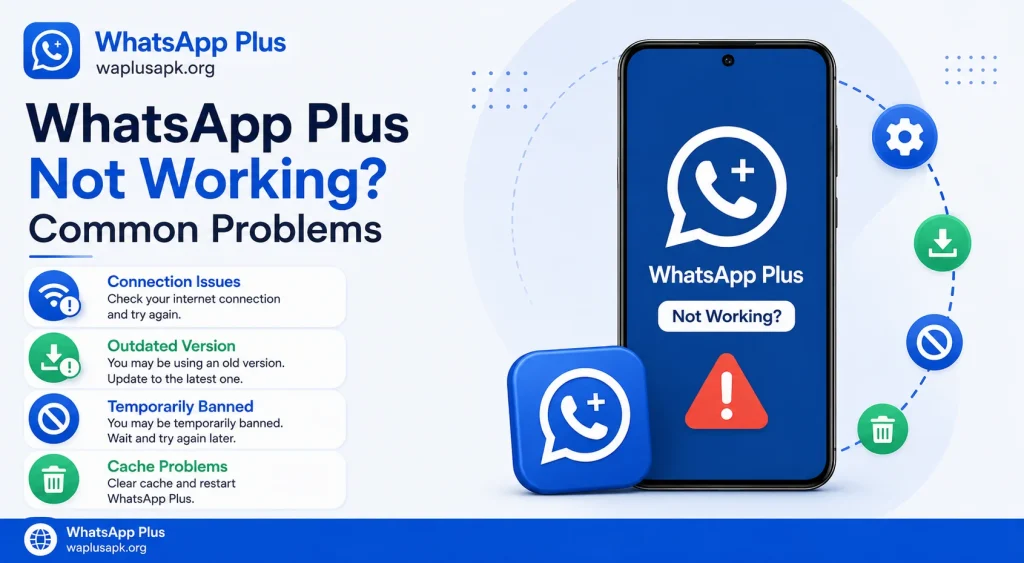
Try clearing the app’s cache first. Cached data occasionally becomes corrupted, especially after updates, and clearing it through your phone’s app settings often resolves immediate crash issues without affecting your actual chat data.
Check for compatibility with your Android version. Older or newer Android operating systems sometimes create unexpected conflicts with specific WhatsApp Plus builds, particularly if the version you’re using hasn’t been updated to match recent Android changes.
Reinstall if clearing cache doesn’t help. If crashes persist, backing up your chats and performing a clean reinstall often resolves deeper issues that a simple cache clear can’t fix.
Problem 2: Messages Aren’t Sending or Receiving
This particular issue can be genuinely alarming since it affects the app’s core function, but it’s usually traceable to a few specific causes.
Check your internet connection first. This sounds obvious, but it’s worth ruling out before assuming the app itself is broken, since connectivity issues affect WhatsApp Plus exactly the same way they’d affect any messaging app.
Verify the app isn’t outdated. As covered in detail elsewhere, WhatsApp occasionally updates its backend systems in ways that specifically affect older, unauthorized client versions, sometimes disrupting message sending and receiving until you update to a compatible version.
Restart the app completely. Fully closing and reopening the app, rather than just minimizing it, sometimes resolves temporary connection glitches that a simple refresh can fix.
Problem 3: Account Gets Temporarily Banned or Restricted
This is arguably the most serious issue users encounter, and it ties directly back to the fact that WhatsApp Plus violates WhatsApp’s official Terms of Service.
Understand why this happens. WhatsApp’s systems periodically scan for signs of unofficial client usage, and detected accounts can face temporary or, in more serious cases, permanent restrictions.
Wait out temporary bans when possible. Many restrictions are temporary, lifting automatically after a set period, though there’s no absolute guarantee of this in every case.
Switch to official WhatsApp if the ban persists. If restrictions continue, reinstalling the official app with the same number sometimes resolves access, though this isn’t guaranteed either, and severe cases sometimes require going through WhatsApp’s formal support process.
Consider using a secondary number going forward. As mentioned throughout this series, isolating WhatsApp Plus usage to a secondary number protects your primary communication line from this exact risk in the future.
Problem 4: Themes or Custom Fonts Not Applying Correctly
Since customization is such a major feature of WhatsApp Plus, visual glitches related to themes and fonts are fairly common complaints.
Restart the app after applying changes. Some customization changes require a full app restart to take effect properly, rather than applying instantly.
Check theme file compatibility. If you’re using a theme obtained from a community source, confirm it’s actually built for your specific version, since mismatched theme files are a common cause of visual glitches or broken layouts.
Reset to default and reapply. If a specific theme causes persistent problems, reverting to the default appearance and then trying a different theme option often resolves the issue without needing a full reinstall.
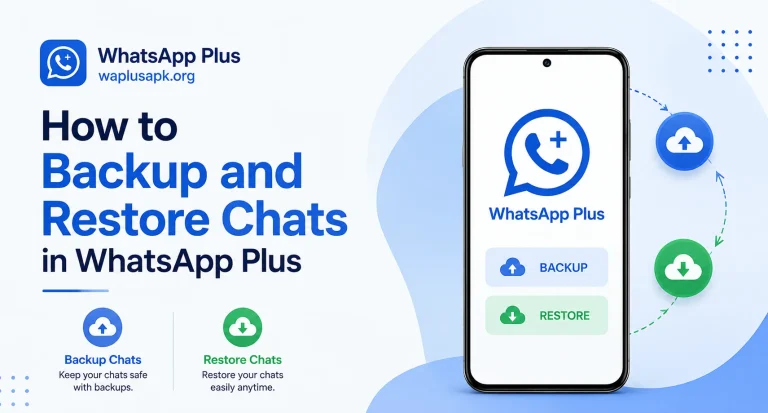
Problem 5: Backup and Restore Failures
Losing access to chat history during a backup or restore process is understandably stressful, but it’s usually preventable and fixable.
Confirm backup file location and size. Verify that your backup file actually exists in the expected storage location and isn’t unexpectedly small or corrupted, which would indicate an incomplete backup.
Ensure sufficient storage space. Both backup and restore processes require adequate free storage on your device, and insufficient space is a surprisingly common cause of failed operations.
Match versions carefully. Restoring a backup created on a significantly different version of WhatsApp Plus sometimes causes compatibility issues, so keeping your version reasonably consistent helps avoid this problem.
Problem 6: Excessive Battery Drain or Overheating
While not as common as other issues, some users report noticeably higher battery usage or device warmth after installing certain versions.
Check background activity in phone settings. Reviewing how much background activity the app is consuming through your phone’s battery settings can help identify whether this is a genuine issue specific to your installed version.
Update to a more optimized version if available. Battery efficiency often improves in later updates as developers refine their code, so checking whether a more recent version addresses this is worth doing.
Consider whether a specific theme is contributing. Particularly heavy, animation-rich themes can occasionally contribute to slightly higher resource usage compared to simpler, more lightweight designs.
Problem 7: Notifications Arriving Late or Not at All
Delayed or missing notifications disrupt the core purpose of a messaging app, making this a particularly frustrating issue for many users.
Check battery optimization settings. Many Android phones aggressively restrict background activity for apps not recognized as “trusted” system apps, which can delay notifications specifically for apps like WhatsApp Plus. Adjusting your phone’s battery optimization settings to allow the app more consistent background activity often resolves this.
Verify notification permissions are fully granted. Occasionally, notification permissions get partially revoked during Android system updates, so double-checking these settings periodically helps catch this before it becomes a persistent annoyance.
Problem 8: Media Files Won’t Download or Send
Issues with photos, videos, or documents failing to send or download properly are usually tied to a few specific, identifiable causes.
Check storage permissions. Confirm the app has been granted proper access to your device’s storage, since restricted permissions are a common and easily fixed cause of this problem.
Verify file size limits. Even with WhatsApp Plus‘s typically higher media limits compared to the official app, extremely large files can still occasionally exceed what the app allows.
Clear storage space if your device is nearly full. Insufficient device storage can quietly interfere with media handling in ways that aren’t always obvious from the error messages the app displays.
General Troubleshooting Habits Worth Building
Beyond fixing specific problems as they arise, a few broader habits help minimize how often you run into trouble in the first place.
Keep the app updated consistently, since many bugs get addressed through regular updates rather than persisting indefinitely.
Maintain current backups at all times, so that any unresolved issue never results in permanent data loss.
Stay connected to active community discussions around your specific version, since other users often identify and share fixes for common issues faster than official documentation would.
When to Consider Switching Back to Official WhatsApp
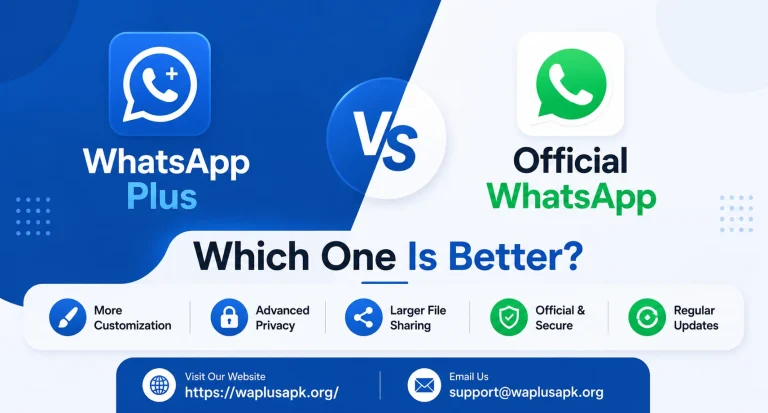
If problems persist despite reasonable troubleshooting efforts, or if account restrictions become a recurring pattern, it’s worth honestly weighing whether the customization and privacy benefits still outweigh the ongoing frustration. Sometimes the most practical fix isn’t a technical one at all, but rather a broader decision about which app genuinely serves your daily needs better.
Frequently Asked Questions
Final Thoughts
Running into occasional problems with WhatsApp Plus is a fairly normal part of using software that operates outside official support channels, but the vast majority of issues fall into predictable categories with straightforward, manageable solutions. Building good habits around backups, updates, and careful permission management goes a long way toward minimizing how often these problems occur in the first place, while knowing exactly how to troubleshoot when something does go wrong keeps frustration to a minimum and gets you back to normal use quickly.